UNFOLD PDF GUIDE
How to Convert a PDF Portfolio to a Single PDF
Convert a PDF portfolio to a normal PDF without Acrobat. Select, reorder and review supported embedded PDFs and images locally in your browser.
What you need before converting
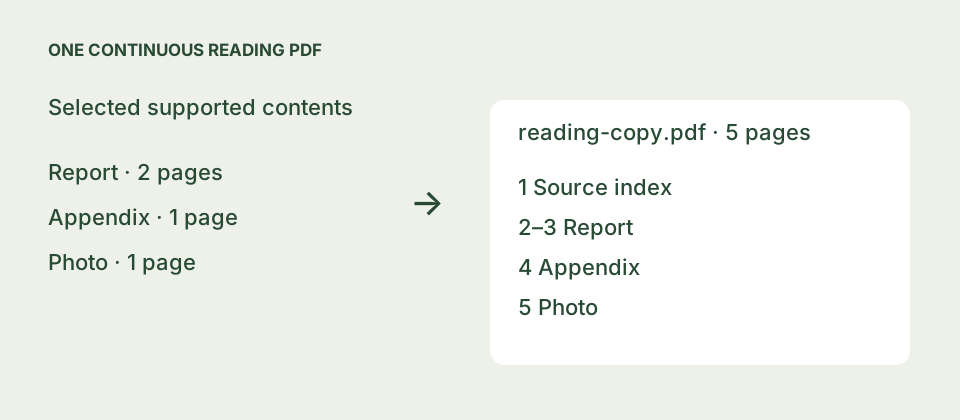
A PDF portfolio holds separate files inside a PDF container. Converting it to a single PDF means assembling the pages of supported files into a new document. You get a continuous reading copy instead of a cover with attachments.
Unfold PDF can do this for supported, unencrypted portfolios without installing Acrobat. All current converter features are free. Document scanning, previews and conversion run in your browser; your document bytes are not uploaded to our servers.
Start with a copy of your portfolio and keep the original. The input workspace supports up to 10 PDFs and 25 MiB of combined input. Other processing limits apply; see supported files and limitations.
Convert a PDF portfolio without Acrobat
- Open the converter. Go to Unfold PDF and choose your portfolio. For a practice run, use the built-in demo before choosing a real document.
- Review the discovered files. Inspect the inventory and its warnings. Click a file row to preview its pages on the right. Supported PDFs and JPEG or PNG images can become pages; other discovered attachments are retained as original files.
- Select and arrange the contents. Use the inclusion checkboxes to choose the sources for your reading copy, then drag their file cards to set the reading order, or use automatic sorting. The output page ranges update when you drop a file. Portfolio wrapper pages are excluded by default; include them explicitly if their cover information is useful.
- Choose your navigation. You can add a source index and source bookmarks. These are new navigation aids, not a restoration of the originals’ internal bookmarks.
- Build and review. Read the acknowledgement about the new reading copy, then choose Build & review reading PDF. Inspect the actual assembled PDF, including the first and last pages of each source and any important form content.
- Download the result. Choose Download PDF. Also save Download originals ZIP and Download export report if you need the retained files and processing record.
Check the result before sharing
Open the downloaded PDF in the viewer your recipient will use. Check page order, image placement, readable text and any important annotations or form values. If searchable text matters, try searching for a phrase you know is present. Unfold does not perform OCR, so scanned pages do not gain searchable text.
Read the export report for skipped files or incomplete inspection. Word documents, spreadsheets and email files do not automatically become PDF pages. Convert those separately with an appropriate application if they need to be included, then start a new workspace with those PDFs.
What happens to signatures and originals?
The merged PDF is a new reading copy. Digital signatures on source documents do not transfer, and Unfold does not validate them. Advanced PDF features may change or be omitted during a page merge.
The originals ZIP retains available input files and extracted payloads, and includes the reading copy when one was created. Keep your original portfolio as well: extraction cannot guarantee discovery of every possible attachment structure. Read our digital-signature guidance before using signed documents.
If conversion does not work
A password-protected, malformed, unusually structured or resource-intensive portfolio may not be supported. Follow the warning shown in the workspace and retain the original file. If the PDF only shows a cover before conversion, use our cover-page troubleshooting guide. If you need the separate files rather than a merged document, follow the attachment extraction guide.
Try it with the built-in demo
Open the converter and choose the demo to explore selection, previews and downloads before using your own documents.
Open converter ↗