UNFOLD PDF GUIDE
PDF Only Shows a Cover Page? How to Open the Contents
Seeing “For the best experience, open this PDF portfolio in Acrobat”? Learn why a portfolio may show only a cover and how to access its supported contents.
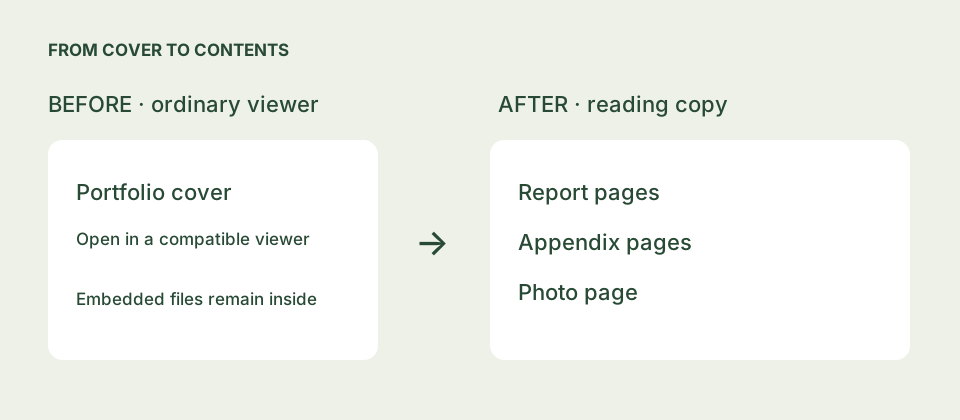
First, check whether it is a PDF portfolio
You open a PDF expecting several documents, but see one cover page or a message asking you to use Acrobat. One possible explanation is that the file is a PDF portfolio: its documents are stored as separate embedded files rather than as a normal sequence of pages.
A viewer can display the container’s cover without providing a useful way to browse everything inside. This does not by itself prove that the contents are missing or that the file is corrupt. Viewer capabilities vary, so first look for a portfolio or attachments panel in your PDF application.
“For the best experience, open this PDF portfolio in Acrobat”
This message can be part of the portfolio’s cover. It is a clue about the file’s structure, rather than a diagnosis of your internet connection. Refreshing a browser tab will not turn embedded documents into regular PDF pages.
If you have a compatible desktop viewer, try its portfolio or attachments view. If your goal is a document that opens as continuous pages in an ordinary viewer, you can instead assemble supported contents into a new reading PDF.
portfolio.pdf → cover + report.pdf + appendix.pdf + photo.png
A reading copy can contain the selected report, appendix and photo pages. The container’s cover is optional.
Illustrative example; actual files and support vary.Open and review the contents with Unfold
- Go to the Unfold PDF converter. Use the built-in demo if you want to try the workflow without choosing your own file.
- Choose the original portfolio PDF, not a screenshot or a PDF made by printing its cover. Printing only the cover may produce a new file without the embedded contents.
- Check the discovered inventory. Click supported file rows to preview their contents on the right. Read any warnings about unsupported files or incomplete inspection.
- Select the PDFs and supported images you want to read, then drag the file cards to arrange their order. Include the wrapper pages only if you want the cover in the result.
- Read the reading-copy acknowledgement, select Build & review reading PDF, inspect the assembled pages, then download the PDF.
For the full workflow and output checks, see how to convert a portfolio to a single PDF.
What if no usable contents appear?
Do not assume that every one-page PDF contains hidden documents. It may genuinely be a one-page document, or you may have received only an exported cover. Ask the sender for the original portfolio or the individual source files when appropriate.
Unfold may also be unable to read encrypted files, unusual attachment structures or damaged PDFs. It has input, nesting and memory safeguards. Consult the displayed warning and processing limits; absence from the inventory is not proof that an attachment never existed.
If discovered attachments are Word, Excel or email files, Unfold preserves available originals but does not render them into PDF pages. Use the originals extraction workflow and an application suitable for each file type.
Keep the original alongside the readable copy
A merged PDF is convenient for reading, sharing or printing, but it is newly generated. Digital signatures do not transfer and advanced features may change. Save the original portfolio, the originals ZIP and the export report before closing the workspace. Check the downloaded reading PDF in your intended viewer before relying on it.
Try it with the built-in demo
Open the converter and choose the demo to explore selection, previews and downloads before using your own documents.
Open converter ↗