UNFOLD PDF GUIDE
How to Extract Files and Attachments from a PDF Portfolio
Extract supported PDF portfolio attachments locally and download an originals ZIP. Learn how extraction differs from merging and check the export report.
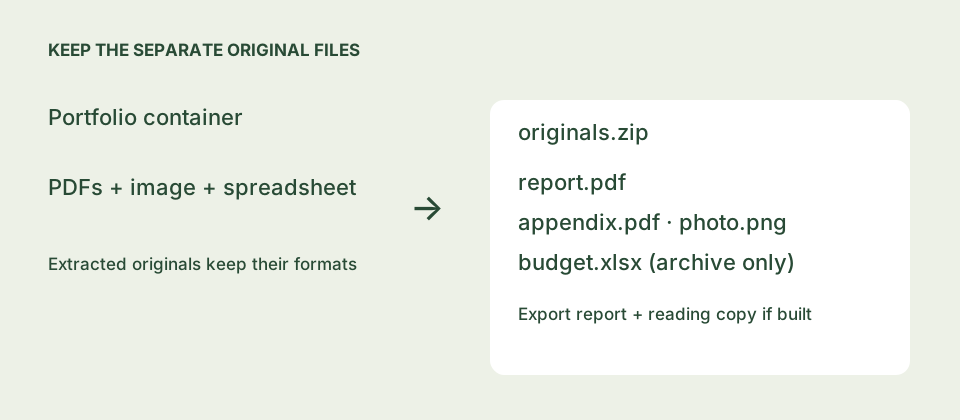
Extracting files versus merging pages
Extracting a PDF portfolio gives you separate embedded files. Merging assembles selected supported pages into a new PDF. Choose extraction when you need the individual documents, their original formats or files that cannot become reading pages.
Unfold discovers supported embedded-file structures in PDFs, including supported nested portfolios. Available original bytes are retained in its originals ZIP. It can also make a reading copy from supported PDFs and JPEG or PNG images, but that extra copy is not required for an originals-only export.
Download an originals ZIP
- Choose the original PDF. Open Unfold PDF and choose your portfolio. Keep a separate copy of the input.
- Inspect the inventory. Review discovered filenames, source paths and warnings. Click a supported file row to inspect its local page preview. A file without a supported preview may still be available as an original.
- Choose whether to make a reading PDF. For extraction only, deselect all reading sources. The action becomes Export originals + report. To make a reading PDF as well, select supported sources, acknowledge the reading-copy notice and choose Build & review reading PDF.
- Download the archive. Choose Download originals ZIP, then save Download export report. The ZIP includes retained input files, extracted attachments, the report and a reading PDF when one was created.
- Check the saved files. Unzip the archive and compare its contents with the inventory and export report. Open each file with an appropriate application when you need to verify it.
The inclusion checkboxes control the reading PDF, not which originals are kept in the ZIP. Deselecting an attachment does not exclude an available original from that archive.
What about Word, Excel, email files and nested archives?
Discovered Word documents, spreadsheets, presentations and other unsupported page formats are preserved as files where extraction succeeds. Unfold does not convert them into PDF pages, open email messages or perform OCR.
Nested ZIP archives are retained as files rather than unpacked. Supported nested portfolios can be inspected within the nesting limit. A discovered filename does not guarantee that every file type can be rendered or that extraction was complete.
If you want one continuous document instead, use the single-PDF conversion guide. For a cover-only viewing problem, see why your PDF may only show its cover.
Read the export report and integrity records
The report records processing outcomes, warnings and which sources became reading pages. SHA-256 records identify the bytes that were retained; they are not a certificate of authenticity or a signature-validation result. Investigate skipped, unavailable or uninspected entries instead of assuming the archive contains every original attachment.
Keep the input portfolio even after downloading the ZIP. Some PDF structures cannot be fully discovered, and encrypted or malformed files may be unsupported. A browser workspace also has resource limits, including 25 MiB of combined input, 100 MiB of decoded attachment data and three nesting levels.
Privacy and signed documents
Scanning and ZIP creation run locally in your browser; your document bytes are not uploaded to our servers. Save the downloads before refreshing or closing the tab, which ends the workspace.
Retaining extracted bytes is different from validating a signature. Unfold does not certify completeness, authenticity or signature validity. The optional merged reading copy does not inherit digital signatures. Consult our signature guidance and keep the original documents for workflows that need them.
Try it with the built-in demo
Open the converter and choose the demo to explore selection, previews and downloads before using your own documents.
Open converter ↗